
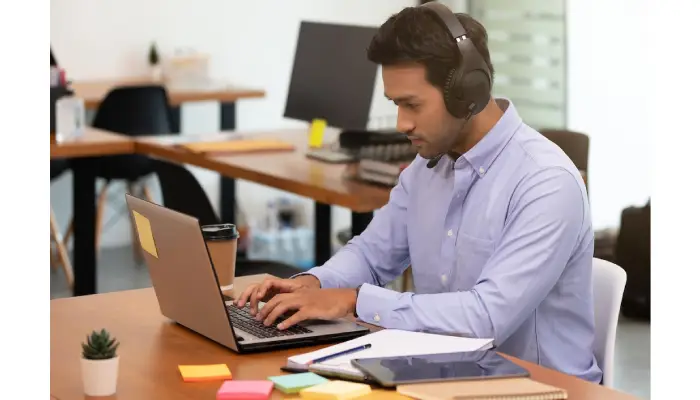
To troubleshoot remote proctoring test problems, start with good pre-exam preparation. Make sure your testing space is quiet, well-lit, and free of distractions, and that your computer meets the platform’s technical requirements. Check that your webcam and microphone work properly and close any apps that might interfere. Use a stable internet connection, ideally wired rather than Wi-Fi. If you face issues like device detection errors or browser problems, restart the computer or browser and ensure you’re using compatible software versions. During the exam, report any glitches right away to the proctor instead of trying to fix things yourself. After finishing, confirm submission and report problems promptly for support help.
Pre-Exam Setup for Remote Proctoring Tests
Before starting a remote proctoring test, it’s essential to prepare both your computer and environment carefully. First, confirm that your device meets all technical requirements from the proctoring platform, including the correct operating system and hardware specifications. Run any system checks or diagnostic tools provided to catch issues early. Choose a quiet, well-lit room with a plain background free from unauthorized materials, distractions, or noise. Test your internet connection to ensure it is stable and fast enough; whenever possible, use a wired Ethernet connection instead of Wi-Fi to minimize interruptions. Close unnecessary applications, especially those that might use your webcam or microphone, to avoid conflicts. Make sure your webcam and microphone are properly connected and working by testing them with other software beforehand. Set your device’s time zone correctly so the exam timing aligns with the scheduled start. Clear your browser’s cache and cookies to prevent loading issues, disable pop-up blockers, and grant the browser access to camera, microphone, and screen sharing permissions as required by the proctoring software. Preparing these elements ahead of time reduces the chance of technical hiccups and helps the exam run smoothly from the start.
- Verify your computer meets the proctoring platform’s technical requirements, including operating system and hardware specs.
- Choose a quiet, well-lit room with minimal background noise and distractions.
- Test your internet connection speed and stability, preferring a wired Ethernet connection over Wi-Fi when possible.
- Close all unnecessary applications, especially those accessing your webcam or microphone, to avoid conflicts.
- Check that your webcam and microphone are properly connected and functional before the exam begins.
- Set your device’s time zone correctly to match the scheduled test time and avoid timing issues.
- Clear browser cache and cookies to prevent loading problems with the proctoring platform.
- Disable pop-up blockers and ensure that the browser allows access to camera, microphone, and screen sharing permissions.
- Run any pre-exam system checks or diagnostic tools provided by the proctoring software.
- Prepare your test environment by removing unauthorized materials and ensuring a plain background behind you.

Fixing Webcam and Microphone Detection Issues
Start by checking the physical connections of your webcam and microphone to make sure they are properly plugged in and powered on. If you’re using external devices, try switching USB ports to rule out connection problems. Sometimes, other applications might be using your camera or microphone, blocking access for the proctoring software. Close any video calls, chat apps, or background programs that might be using these devices. Restarting your computer can also help reset device drivers and clear any temporary conflicts. To confirm your devices are working, test your webcam and microphone with other apps like the camera app or voice recorder. Next, verify that your browser or proctoring software has permission to access your camera and microphone—check your browser’s settings or system privacy controls. Outdated device drivers can cause detection issues, so update your webcam and microphone drivers to the latest versions from the manufacturer’s website. If antivirus or firewall settings are blocking access, temporarily disable them during the test, but remember to turn them back on afterward. Use the diagnostic or system check tools provided by the proctoring platform to identify any device detection problems directly. If issues continue, consider using an alternate webcam or microphone if you have one available, as hardware faults can sometimes be the cause. These steps help ensure your devices are ready and recognized, avoiding last-minute disruptions during your remote exam.
Resolving Browser Compatibility and Loading Errors
Using the proctoring platform’s recommended browsers, usually Google Chrome or Mozilla Firefox, is key to avoiding compatibility issues. Always make sure your browser is updated to the latest version to support the proctoring software’s features and security requirements. If you experience loading problems, clearing your browser’s cache and cookies often helps by removing outdated or corrupted data that might block proper loading. Browser extensions, especially ad blockers or privacy tools, can interfere with the platform’s operation, so disabling them before your exam can prevent unexpected errors. Restarting your browser and logging back into the proctoring system refreshes your session and can resolve minor glitches. Some platforms may require specific browsers or extensions—install these as directed and verify they are set up correctly. Avoid using mobile or unsupported browsers, as these often lack full functionality needed during the test. Check your browser permissions to confirm camera, microphone, and pop-ups are allowed for the proctoring site, since denying these can cause the platform to malfunction. If the platform loads slowly, check your internet connection and close other tabs or background downloads that might consume bandwidth. Finally, if one supported browser consistently fails to load the test platform, try switching to another recommended browser to see if that resolves the issue.
Handling Internet Connectivity Problems
Before starting your remote proctoring exam, test your internet speed to ensure it meets the minimum recommended threshold, which helps avoid interruptions during the test. Whenever possible, use a wired Ethernet connection instead of Wi-Fi, as it offers a more stable and consistent connection. If you must use Wi-Fi, sit close to your router or consider a Wi-Fi extender to boost the signal strength. Restart your modem and router ahead of time to clear any temporary network glitches. Disable VPNs or proxy servers, since they can disrupt the connection with the proctoring platform. Make sure to close any applications or devices on your network that consume a lot of bandwidth, like video streaming or downloads, to keep your connection smooth. During the exam, keep an eye on your connection status and inform the proctor immediately if it drops. Having a backup internet source, such as a mobile hotspot, can be a lifesaver if your main connection fails. If you face ongoing issues before your test day, contact your internet service provider to resolve them in advance. Avoid multitasking on the internet during your exam to minimize the risk of slowdowns or disconnections.
Adjusting Screen Resolution and Display Settings
Before starting your remote proctoring exam, set your screen resolution to the platform’s recommended settings, usually 1280×720 or higher. This ensures the test interface displays correctly and prevents elements from being cut off or distorted. Make sure your display scaling is set to 100%, as scaling can cause interface problems or block essential buttons. Use a single monitor setup unless the test rules specifically allow multiple screens. Disable any screen mirroring or extended desktop modes because these can make the proctoring software malfunction or fail to capture your screen properly. Avoid changing display settings during the exam to keep the software stable. Also, maximize your browser window and avoid zooming in or out, which might disrupt the test layout. Adjust your screen brightness and contrast so your face is clearly visible on the webcam, helping the proctor monitor you effectively. Close any background applications that might cause screen flickering or sudden resolution changes. If you’re using a laptop, disable automatic display switching when docking or undocking to keep your display consistent. If your display settings don’t apply correctly, restart your computer before starting the exam to reset everything properly.
Improving Audio and Video Quality
To ensure clear audio and video during your remote proctoring test, start by positioning yourself close to your microphone and webcam. This helps capture your voice and face more clearly, making it easier for the proctor to monitor you. Remove or minimize background noise sources, or use a noise-cancelling microphone if you have one, to avoid distractions or unclear audio. Good lighting is also essential: make sure your room is well-lit with light coming from in front of you, not behind, to prevent shadows or backlighting that can obscure your face. Check your microphone input volume and adjust it so your voice is neither too soft nor distorted. Cleaning your webcam lens can improve video sharpness, as dust or smudges often cause blurry or foggy images. If your camera supports manual focus, adjust it to ensure your face is clear. Avoid wearing hats or clothing that cover your face, as this can interfere with facial recognition or proctoring checks. Before the exam begins, test your audio and video quality using the proctoring system’s built-in tools or other apps to catch any issues early. Keep your microphone unmuted during the test unless you’re specifically told otherwise. Lastly, close any applications or browser tabs that might use your camera or microphone or interfere with their performance to prevent conflicts and ensure smooth operation throughout your test.
Dealing with Software Crashes and Freezes
If the remote proctoring software crashes or freezes during your exam, the first step is to restart the application or browser. This simple action often resolves temporary glitches. If the problem continues, reboot your computer to clear any temporary system errors that might be affecting performance. It’s also important to close any background programs that could conflict with the proctoring software, like video editors or security tools. Make sure your device meets the minimum hardware requirements for the software to run smoothly, as older or underpowered devices can cause instability. Check for updates both for the proctoring application and your operating system, since outdated software can lead to crashes. Disabling unnecessary browser extensions can also help, especially if you notice instability or unexpected behavior during the exam. Avoid multitasking or switching between multiple applications while testing, as this can overload your system or interfere with the proctoring software’s monitoring functions. If crashes persist, reinstalling the proctoring software can often fix corrupted files or settings. Throughout the exam, save your work frequently if the platform allows it, and be prepared to report issues to support immediately. If problems continue, use the platform’s troubleshooting guides or contact their helpdesk for further assistance to ensure your exam proceeds without interruption.
Troubleshooting Login and Authentication Errors
When you face login or authentication errors during a remote proctoring test, start by carefully checking your username and password. Remember that passwords are often case sensitive, so make sure caps lock isn’t accidentally on. If you still can’t log in, clear your browser’s cache and cookies to remove any corrupted data that might be causing problems. Restart your browser after clearing these files and attempt to log in again. Double-check that you’re using the exact URL or test link provided by the proctoring platform, as using an incorrect link can prevent access. If you’ve tried multiple times without success, consider resetting your password through the platform’s recovery option. Also, verify that your account is active and authorized for the scheduled exam, as some platforms require prior activation or approval. Browser extensions can interfere with authentication scripts or pop-ups, so disable any that might block these elements before logging in. Check your email for any exam-specific instructions or login codes that might be required. Avoid logging in from multiple devices or attempting simultaneous logins, as this can lock your account temporarily. If problems persist after these steps, reach out to the testing organization’s support team for assistance. They can help confirm your account status and guide you through any platform-specific troubleshooting.
Managing Error Messages and Pop-Up Issues
When facing error messages during a remote proctoring test, the first step is to read them carefully and follow any on-screen instructions. These messages often provide clues to fix the problem quickly. If pop-up windows are blocked, disable your browser’s pop-up blocker, as proctoring software relies on these windows to function properly. Persistent errors may require restarting your browser or computer to reset any temporary glitches. Since many errors relate to internet problems, verify your connection is stable and strong; switching to a wired connection can help avoid interruptions. Clearing your browser’s cache and cookies often solves loading or authentication issues by removing corrupted temporary files. Make sure you’ve granted all necessary permissions for camera, microphone, and screen sharing, as missing permissions can trigger errors. Keeping your browser and proctoring software updated ensures compatibility and reduces bugs. Close any other applications or browser tabs that might interfere, especially those that access your camera or microphone. If you encounter specific error codes, use the platform’s help resources to understand what they mean and follow suggested fixes. Should error messages prevent you from continuing the exam despite these steps, don’t hesitate to contact support immediately for assistance. For example, if a pop-up warning keeps appearing, disabling the blocker and restarting your browser usually clears the issue, allowing the test to proceed smoothly.
Preparing Your Test Environment Correctly
Setting up your test environment properly is essential to avoid interruptions or flags during a remote proctoring exam. First, remove all unauthorized materials like notes, textbooks, phones, or any smart devices from your testing area. These can raise suspicion and potentially cause your exam to be voided. Make sure the wall behind you is plain and free from posters, calendars, or artwork that might distract the proctor or cause concerns. Proper lighting is also critical: position yourself so your face is clearly visible on the webcam. Avoid harsh backlighting or shadows that make it difficult for the proctor to see you. Throughout the exam, stay within the webcam’s field of view—moving out of frame repeatedly can trigger warnings or even test termination. Unless the exam rules explicitly allow it, do not use headphones or earbuds, as these might be mistaken for unauthorized communication devices. Choose a quiet location where family members, pets, or other distractions won’t interrupt you. Inform those around you about your exam schedule to minimize disruptions. Place your computer or device on a stable surface to keep the camera steady; shaky video feeds can interfere with monitoring. Close doors and windows to block outside noise and distractions. Finally, avoid eating, drinking, or any behavior that could be misinterpreted by the proctor during the test. Taking these steps will help create a controlled environment that supports a smooth and trouble-free remote proctoring experience.
Steps to Take When Problems Occur During the Exam
If you encounter any issues during your remote proctoring exam, the first step is to notify the proctor immediately using the chat or audio feature. Avoid refreshing or closing your browser without the proctor’s approval, as this can cause complications or lead to exam invalidation. Follow any instructions the proctor provides carefully to help resolve the problem quickly. If the exam freezes or you get disconnected, try to reconnect using the original exam link if the proctor allows it. Do not switch between applications or browsers unless you are explicitly told to do so, since this might trigger flags in the system. It’s important to avoid rapid clicking or any suspicious behavior that the proctoring software might interpret as cheating. Document the issue by taking screenshots or noting down any error messages you see, as this information can be valuable for reporting after the exam. Stay calm throughout the process and keep your communication clear to prevent misunderstandings. If reconnection attempts fail or the proctor cannot fix the problem, contact technical support through the provided help channels immediately. Finally, if the issue remains unresolved, report it to the testing organization right after the exam to ensure your situation is properly addressed.
What to Do After Completing the Exam
After finishing your remote proctoring test, first make sure you have fully submitted your exam before closing the browser or turning off your device. Some platforms may not save your answers until the submission is confirmed. It’s a good idea to save or take a screenshot of any confirmation message or receipt the system provides as proof of completion. If you experienced any technical issues during the exam, report them promptly to the testing organization with details and screenshots if possible. Review your testing environment to ensure no violation warnings were triggered, as this could affect your exam results. Always log out securely from the testing platform to protect your account, then close all browser tabs and applications related to the exam to avoid accidental reconnection or privacy risks. Check your email or any messaging channels for post-exam instructions, such as feedback requests or additional document submissions, and follow those carefully. Keep your device plugged in or charged until you are certain the exam session is fully closed to avoid disruptions. Finally, take a moment to reflect on any difficulties you faced during the test to better prepare for future exams and improve your troubleshooting strategies.
Tips for Using Specific Proctoring Software
When using specific proctoring software, start by installing any required browsers or extensions recommended by the platform, such as the Guardian Browser. Running the pre-exam system checks is crucial; these tests confirm that your webcam, microphone, and internet connection meet the software’s standards. Before exam day, update your drivers for the webcam, microphone, and graphics to avoid compatibility problems that could interrupt the test. Follow the platform’s instructions carefully, especially regarding device permissions—make sure you allow access to your camera, microphone, and screen sharing features. Keep the proctoring software open and active during the entire exam session to prevent disconnection or automatic logout. Use only supported browsers, typically Chrome or Firefox, and ensure they are updated to the latest versions. Disable pop-up blockers and any extensions that could block camera or microphone permissions. Avoid running other software that might interfere with the proctoring application, like other video conferencing tools or security programs. Getting familiar with the software interface beforehand helps reduce stress and makes navigation smoother on exam day. If you encounter issues, try the built-in help features first, as many platforms include troubleshooting guides or chatbots. If problems persist, contact the support team promptly for assistance to avoid delays or exam interruptions.
Accessing Help and Support Resources
When facing remote proctoring test problems, start by exploring the proctoring service’s online help pages or FAQ sections. These resources often cover common issues and quick fixes. Many platforms also offer instructional videos or tutorials that guide you through setup and troubleshooting steps. If you encounter a problem during the exam that you can’t resolve, use the live chat or phone support options provided by the proctoring company for real-time help. It’s a good idea to have these contact details handy before your test begins. Additionally, detailed troubleshooting guides like the MAP Growth Remote Testing Guide can be valuable for understanding specific errors and solutions. If your proctoring platform supports community forums or discussion boards, these can be useful places to get peer advice and tips from other test-takers. Preparing a list of common error messages and their meanings can speed up communication with support teams. When contacting technical support or your institution’s exam coordinator, clearly document your issue with details such as error codes, screenshots, and the exact steps you took before the problem occurred. This helps the support team diagnose and resolve the issue faster. If problems remain unresolved after the exam, report them promptly to the test provider so they can review your case officially. In all cases, having quick access to support channels and knowing how to describe your problem effectively makes a significant difference in managing remote proctoring difficulties.
Common Reasons Exams Get Voided
Exams can be voided for several reasons that often relate to violating test rules or technical mishaps. One of the most frequent causes is repeatedly leaving the webcam’s view without permission. This behavior raises concerns about possible cheating or unauthorized assistance. Using unauthorized materials like notes, books, or electronic devices during the exam is another clear violation that leads to voiding. Sometimes, candidates fail to complete necessary pre-exam setup steps, such as environment checks or installing required software, which can cause the system to flag the session as invalid. Not reporting technical problems promptly, such as connection drops or software glitches, can also result in exam cancellation because the proctor cannot verify the test’s integrity. Using multiple devices or extra monitors without explicit approval is often prohibited and may trigger an automatic void. Additionally, disabling required software features or browser extensions interrupts the proctoring system’s ability to monitor the exam properly. Background noise or interruptions that distract the proctor or interfere with monitoring can also cause an exam to be voided. Exhibiting suspicious behaviors, like quickly switching between applications or unusual eye movements, often leads to suspicion and potential test invalidation. Technical issues that cause incomplete or corrupted exam submissions are a common reason for exams being voided, as the test cannot be properly evaluated. Finally, failing authentication checks, such as improper ID verification or login failures, prevents the exam from being accepted. Understanding these common causes helps test takers avoid mistakes that might jeopardize their exam results.
Best Practices for a Smooth Remote Proctoring Experience
To ensure a smooth remote proctoring experience, start by testing your computer, webcam, microphone, and internet connection well ahead of exam day. Using a wired internet connection can greatly reduce lag and connection drops compared to Wi-Fi. Set up a quiet, well-lit space free from distractions or unauthorized materials, and inform anyone around you about your test schedule to minimize interruptions. Keep your devices fully charged or plugged in throughout the exam to avoid unexpected shutdowns. Before starting, close all unnecessary applications and browser tabs to prevent conflicts with the proctoring software. Stay visible and centered in the webcam frame at all times, and avoid wearing headphones or audio devices unless specifically allowed. It’s also wise to have backup devices or internet options ready in case technical issues arise. Following all instructions from both the test provider and the remote proctor promptly will help avoid delays or flags during the exam. These simple steps can prevent many common problems and create a more focused testing environment.
How to Respond When You Encounter Test Issues
When you face technical problems during a remote proctoring test, the first step is to stay calm and avoid panicking. Keeping a clear head helps you address the issue more effectively. Immediately document the problem by taking screenshots or noting any error messages along with the time they occurred. This information can be crucial when explaining the issue later. Next, notify the remote proctor right away using the chat or audio features provided. They are there to guide you through troubleshooting steps or reconnecting to the exam. Follow their instructions closely and avoid trying unauthorized fixes such as closing the browser or restarting your device unless the proctor explicitly says to do so. If the proctor cannot resolve the issue, reach out quickly to the test organization’s support team using the contact methods given. Throughout the process, keep a detailed record of all communications and responses. After the exam, make sure to formally report any problems you encountered so the testing organization acknowledges and investigates them. If support suggests using an alternate device or internet connection, try to do so promptly to minimize disruptions. Preparing by reviewing common troubleshooting steps before the test can also help you act efficiently if issues arise.
Frequently Asked Questions
1. What should I do if my webcam or microphone isn’t working during a remote proctoring test?
First, check if your devices are properly connected and allowed access by the browser. Restart your computer or try using a different browser. If the issue continues, update your device drivers and browser to the latest versions. Make sure no other app is using the webcam or microphone at the same time.
2. How can I fix problems with internet connectivity affecting my remote proctoring session?
Try moving closer to your Wi-Fi router or switch to a wired Ethernet connection for more stability. Close background apps that might be using bandwidth. If possible, restart your router and test your internet speed to ensure it meets the test requirements.
3. What steps should I take if the remote proctoring software crashes or freezes during the exam?
Save any work if possible, then close the software and restart it. Clear your browser cache or try a different supported browser. Make sure your device meets the software’s system requirements and close unnecessary programs running in the background.
4. How do I handle issues where the software doesn’t recognize my ID or face during identity verification?
Make sure you follow the instructions carefully, like holding your ID steady and in a well-lit area. Clean your camera lens and avoid glare. If recognition still fails, retry the verification or contact support for alternative identity checks.
5. What can I do if the remote proctoring platform prevents me from navigating the test interface properly?
Verify that pop-up blockers and browser extensions are disabled for the testing site. Confirm you are using a supported browser and device. Refresh the page or restart your computer, and if the problem persists, reach out to technical support for guidance.
TL;DR To troubleshoot remote proctoring test issues, start with a proper pre-exam setup: ensure a quiet environment, check your webcam and microphone, use a stable internet connection (preferably wired), and clear browser caches. Common problems include device detection errors, browser incompatibility, connectivity hiccups, and software crashes. Fix these by updating software, restarting devices, and following platform guidelines. Keep your testing space distraction-free and follow proctor instructions during the exam. If issues arise, notify the proctor immediately and document errors. After finishing, confirm submission and report any problems. Using recommended browsers, running pre-exam checks, and knowing how to access support can help avoid test voids and ensure a smooth experience.
